Totally Integrated TDD Example
In my previous blog post, Integrated TDD Environment, I explained how you can do all of your Test Driven Delopment steps without leaving the Visual Studio 2008 IDE by adding a new Task List comment type: TEST
In this blog I will demonstrate step-by-step using a simple example how create a functional class from scratch using integrated TDD within VS 2008.
The Requirements
Every software development project should begin with requirements. Our example will have the following requirement:
- Provide a web form where the user can enter a temperature in either Fahrenheit or Celsius and see the conversion to the other system.
Our design will separate the user interface from the business logic. For our example we will only test the business logic. We start by creating a new Windows class library project. Name it WebControls. Delete Class1.cs and add a new class named Temperature. This is the class we will build using TDD.
Generate the Test Project
Since we are doing TDD, then all of the development will be driven from our unit tests. We want to have a test project for each project in our solution and a test fixture for each class in each project. Lets add a new project to our solution by selecting Project Type, "Test" and the "Test Project" template. Name the project "WebControlsTestProject."
Select WebControlsProjects in the solution explorer and select "Add" then "Unit Test." You can then browse all the projects in your solution. Select the Web Controls project and the Temperture class:

Visual Studio will create your unit test module shell with the necessary includes and several procedures, including many that are commented out in the "Additional test attributes" region, including setup and tear-down routines, which you can easily uncomment and use.
Since we created a class named "Temperature" then the Visual Studio unit test wizard created a class called "TemperatureTest." We will add our test list in this module.
Add TEST to the Task List Comment Tokens
Start by defining a new Task List token for the test list. On the Tools menu select Options, then select Task List from the list on the left of the options dialog.

Type "TEST" in the Name field, click Add and then OK. Now you will be able add test list items anywhere in your code by adding a comment that begins with the TEST: followed by the description of your test:
-
// TEST: Here is a unit test description.
This comment now appears on the Comments Task List:

Create the Test List
We are ready to create our test list. We start with our requirement and test for the following:
- Valid results
- Error conditions
- Limit conditions
If you remember back to 6th grade, these are the key facts concerning conversion between Fahrenheit and Celsius:
- Water freezes at 32 F and 0 C
- Water boils at 100 C and 212 F
- The formula for converting is C = (5/9)*(F - 32)
- There is a temperature called "absolute zero" which is the lowest posible temperature. It is -273.15 C or -459.67 F
We can make of these facts to generate the initial test list and then add more tests as we think of them. Open the TemperatureTest.cs class file, move to the end, and insert the following comments before the two end brackets for class and namespace:
-
// TEST: Verify 32 F converts to 0 C // TEST: Verify 0 C converts to 32 F // TEST: Verify 100 C converts to 212 F // TEST: Verify 212 F converts to 100 C // TEST: Verify that the Celsius temperature equals Farenheit minus 32 times 5/9 // TEST: Verify that the Farenheit temperature equals Celsius times 9/5 plus 32 // TEST: Verify that a negative Farenheit temperture converts to the correct value // TEST: Verify that a negative Celsius temperture converts to the correct value // TEST: Verify that entering a temperture less than -273.15 C throws and exception
If this doesn't cover all the code we need to write, it should give us a good start. We can easily add new tests as we think of them just by entering comments. Our VS Task List should now look like this:

Implementing the Tests
We're now ready to start TDD. Let's start with the first test, "Verify 32 F converts to 0 C." You can double-click the item in the task list to jump right to it. Add the following code below the comment:

Now we want to write some code and see if the test passes. First we have a design decision to make: do we want this class to require an object to be instanited or use static methods? Static methods are easier to call, but if we need data persisted within the object we have a problem because static methods are global. If you look back at the requirement we see that we need to support a web form, which would have a view state, so our temperture convertor probably won't need to remember anything. We'll start with a static method and hopefully that'll get through all the tests.
We start by writing the code in the test first, then updating the Temperture class so that it compiles, and eventually passes the test.
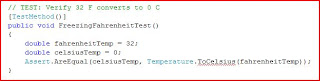
It seems reasonable that the Temperature class would have a static method named "ToCelsius" that takes a double (since we can have fractions of a degree) representing the Fahrenheit temperature and returns the Celsius temperture as a double.
We have not written the "ToCelsius" method yet, so Visual Studio puts a wavy red line under the method indicating a syntax error. Here is where the refactoring capabilies come in handy. Hold the mouse over the "ToCelsius" method name then you get a drop list where you can select "Generate method stub for Temperature.ToCelsius." We do so and now we can compile and run the test. Of course it fails:

To fix the test we right-click the ToCelsius method "Go To Definition," and then fix the method with the minimum amount of code for the test to pass:

Run the test again and now it passes:

Our first test is done, so we remove it from the list. Since our Task List is driven by comments then we need to delete the TEST: from the comment. We can leave the description so that we have some documentation left behind.

The Task List now has 8 tests remaining. The next test is to verify that 32 F converts to 0 C. If we follow the same method as before we write this test:

We implement this method to get the tests to pass:

And we run all the tests and verify they pass:
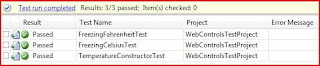
Note that there are actually 3 tests, because Visual Studio automatically adds a test for the class constructor. Since we're using static methods and don't do anything in the construtor, then I changed the default test to simply verify that the class can be created:

When we did the freezing point tests we wrote the minimum amount of code by simply returning the hard-coded expected results of 0 or 32. We could do the same with the boiling points, but let's skip ahead a couple tests and see if these two tests don't take care of some of the others:
- // TEST: Verify that the Celsius temperature equals Farenheit minus 32 times 5/9 // TEST: Verify that the Farenheit temperature equals Celsius times 9/5 plus 32
Again we start by writing the test code first, then adjusting the class methods for the tests to pass. We can use the same to static method to convert Fahrenheit to Celsius and copy the previous test, then edit the code to create the test below:

For the above test I picked a random temperature, 72 F, and then calculated what the result should be. We now run the test, and since our "ToCelsius" mthod is still hard-coded to return 0 then, of course, it fails:

We can now go to the ToCelsius method and fix it:

Let's rerun the tests and see what happens:

Notice that not only does the ConvertToCelsiusTest pass, but the previous tests also pass so that we know we have not broken any of the previously working code with our new changes. That's one of the benefits of TDD: as you build your software in small steps you build a collection of regression test that get re-run at each step, immediately alerting you when when new code causes previous code to fail.
At this point I won't bore you too much more with doing the next few tests step-by-step. The Convert to Fahrenheit test can be done the same way we just did the Celsius conversion, and the two boiling point tests can be added and run to check that our formulas work at both ends of the scale:

Now we have one more test to do:
// TEST: Verify that entering a temperture less than -273.15 C throws and exception
But this suggests one companion test, verifying that absolute zero on the Fahrenheit scale also generates an exception. We can quickly add tests as we think of them by simply typing in a comment:
// TEST: Verify that entering a temperture less than -459.67 F throws and exception
Let's do absolute zero on the Celsius scale first. This is different from the previous tests, because instead of testing an assertion, we want to test that certain will generate an exception. So we need to use the ExpectedException attribute. We add it as a decoration inside square brackets between the TestMethod() attribute and the unit test method declaration. It takes a parameter for the expected exception type, so that's the first thing we need to decide, the type of exception we should generate. We could define our own custom exception, but lets just use an Overflow Exception, since we are overflowing the range of valid temperatures. Here's what the test code would look like:

Notice that we added the ExpectedException attribute and gave it the System.OverflowException parameter, using the typeof() function to provide the correct type for the parameter. The test code itself does not need to use the Assert method. The test method just needs to execute code we expect to generate the exception. So we take the out-of-range Celsius value, give it to the ToFahrenheit method, and try to assign it to a variable. When we run this test we get the following result:

The code did not throw an exception, therefore the test failed. We now adjust the ToFahrenheit to throw the expected exception:

The test now passes:

The process for the absolute zero Fahrenheit is similar. We add the test, adjust the code ustil it passes, then we can re-run all our tests and they now all pass:

We keep removing the TEST: attribute from our comments each time a test passes and our Task List is now empty:

Summary
This demonstrates how you can do TDD, Test Driven Development, without leaving the Visual Studio 2008 environment. We added a new task type, TEST and then managed our TDD test list through the Task List. We used the integrated unit test and refactoring capabilities of VS 2008 to build a new class from scratch using the red/green/refactor methodology.


 Posts
Posts

